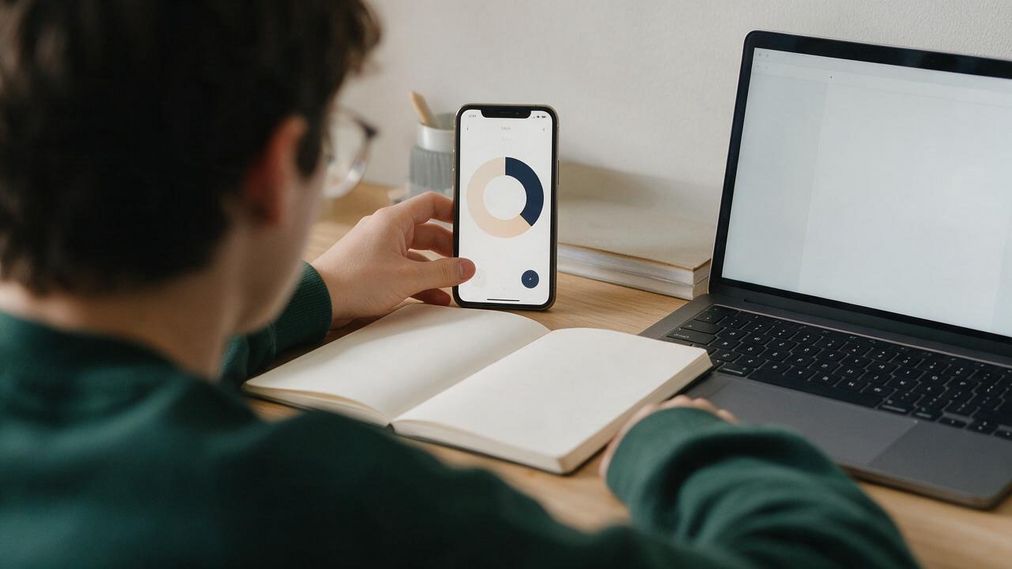
The best study timer apps solve the specific reason your time disappears: a simple timer helps you start, a blocker limits distractions, and task tracking shows where your study hours went. Start with the lowest-friction option, then add features only when a clear problem remains.
Losing time during a study session usually means your work lacks a visible starting cue, stopping point, or distraction boundary. The tools below match different study problems, from procrastination and phone checking to poor planning and forgotten breaks. You’ll also learn how to choose a timer without building a complicated productivity system around it.
Why You Keep Losing Track Of Time While Studying
You can lose time before you begin, during the session, or after you become absorbed in a task. You may spend 20 minutes arranging notes, open a distracting app without thinking, or study far longer than planned because there’s no clear stopping cue. A focus timer makes time visible and gives the session a defined boundary. That boundary reduces the need to keep checking the clock.
The right tool depends on where the problem appears. If starting feels difficult, a basic countdown timer may be enough. If notifications or websites pull you away, you need blocking controls rather than a more decorative timer. If you finish the week unsure where your hours went, look for task labels, session histories, or study tracking.
Timers can also interrupt you when you’re already concentrating well. You don’t need to stop productive work merely because a preset interval ended. Treat the alert as a decision point: pause if your attention is fading, or continue and record a longer session. The timer should support your study rhythm rather than control every minute.
How To Choose A Study Timer App Without Overcomplicating It
Choose the smallest tool that addresses your main problem. A browser timer suits you if you need a visible countdown beside your notes. A gamified focus app can make starting feel more rewarding, and a task timer connects individual sessions to assignments. Website and app blockers fit situations where a timer alone doesn’t prevent distraction.
Consider how much setup you’ll tolerate before every session. Tags, folders, reports, schedules, and synchronized task lists can be useful, but they also create more decisions. If you regularly postpone studying while organizing your productivity tools, choose an app that opens directly to a start button. Low friction matters more than an extensive feature menu.
Review privacy, permissions, platform support, and current costs before installing anything. Blocking tools may require broader access than a basic timer because they need to restrict selected apps or websites. Cross-device support matters when you study on a laptop but keep your phone nearby. Free built-in controls are a sensible starting point if you don’t want another account or subscription.
Pomofocus: Best For A Simple Browser-Based Timer
Pomofocus is a web-based Pomodoro timer suited to students who want to begin without installing another app. You can keep it open in a browser tab while reading, writing, or working through practice questions. Its visible countdown gives your session a clear endpoint. This makes it a practical choice for shared computers, school laptops, and browser-centered study routines.
The standard Pomodoro Technique commonly uses 25 minutes of focused work followed by a five-minute break, with a longer break after four intervals. That pattern can help when a large assignment feels too vague or demanding to start. Instead of committing to an entire evening, you commit to one defined block. Once you begin, you can decide whether to repeat the interval or adjust its length.
Pomofocus works best when you need a timer rather than strict enforcement. It won’t solve a habit of opening distracting tabs unless you pair it with browser restrictions or device controls. Write one concrete target before pressing start, then keep only the required study materials open. “Review chapter five questions” gives you a better boundary than “study biology.”
Forest: Best For Gamified Study Motivation
Forest turns focus sessions into a visual reward by letting you grow virtual trees while you work. This suits students who understand timers but struggle to care about starting one. The growing tree acts as a visible commitment to the current session. It can make repeated study blocks feel connected rather than isolated.
Gamification works best when the reward reinforces useful behavior without becoming another distraction. Use Forest to mark completed focus periods, not to spend study time managing a virtual collection. You can associate each session with a single assignment, reading goal, or revision topic. The official Forest site also describes real-tree planting partnerships, adding an external element to its tree theme.
Choose Forest if visual progress gives you a reason to stay off your phone. Skip it if game elements lead you to check the app repeatedly or focus more on streaks than completed work. The real measure is whether you begin sessions sooner and finish more planned tasks. Review your actual output alongside your virtual progress.
Focus To-Do: Best For Tasks And Focus Sessions
Focus To-Do combines a Pomodoro timer with task management. It fits students who keep a long assignment list but rarely translate that list into focused work periods. You can connect a session to a named task, making it easier to see what you worked on. This reduces the gap between planning your study time and using it.
A combined task timer is useful for assignments that require several sessions across multiple days. Break a broad project into actions you can finish or measure, then assign focus blocks to those actions. “Draft the introduction” is easier to track than “work on paper.” Your session history can then show how much attention each part received.
Avoid turning the task list into a second assignment. Keep your categories limited to subjects, active projects, or deadlines that affect the current week. Archive finished work so the list stays readable. If you spend more time sorting tasks than completing them, return to a short daily list with one timer.
Freedom: Best For Blocking Distracting Apps And Websites
Freedom blocks selected websites and apps and supports scheduled focus sessions. It suits students who start a timer but still open social media, entertainment sites, messages, or unrelated browser tabs. Blocking removes the repeated decision to resist those distractions. Your timer then measures focused work instead of sitting beside an unrestricted device.
Scheduled sessions can help when you study at predictable times. Rather than remembering to activate restrictions every afternoon, you can create a recurring boundary around your planned work period. Build a narrow block list first, targeting the places that repeatedly take you off task. Blocking everything can interfere with research, course portals, communication, or study resources you still need.
Use Freedom when distraction control is the missing feature, not merely because it has more controls than a basic timer. Check current device support, pricing, and trial terms on its official site before committing. Also review the permissions required for the type of blocking you want. A dedicated blocker should earn its place by reducing real interruptions.
Apple Screen Time: Best Built-In Option For iPhone And iPad
Apple Screen Time provides built-in controls that can reduce phone distractions without adding another study timer app. App Limits let you set usage boundaries for selected app categories or individual apps. Downtime can restrict access during scheduled periods. These controls work well when your phone is the main reason a study session drifts.
You can pair Screen Time with the device’s standard timer or a browser-based Pomodoro timer. Start a focus interval, place the phone out of reach, and let App Limits or Downtime add another barrier to habitual checking. This setup costs less effort than adopting a full study planning system. It also keeps basic controls inside tools already available on your device.
Built-in limits aren’t useful if you override them automatically. Set boundaries that are firm enough to interrupt the habit but practical enough to follow. Keep learning tools, authentication apps, and necessary communication available when required. Review Apple’s current support information because available settings can vary by device software and configuration.
Google Digital Wellbeing: Best Built-In Option For Android
Google Digital Wellbeing includes app timers and Focus mode on supported Android devices. App timers help you limit daily use of selected apps, and Focus mode can pause distracting apps during a study period. It’s a strong starting point when you want distraction control without downloading a separate service. Availability can depend on your device and Android version.
Focus mode works well as a boundary around a planned study block. Select the apps that usually interrupt you, activate the mode, and run a separate countdown for your work interval. You can then use the timer as your study cue and Digital Wellbeing as the guardrail. Keeping those roles separate makes the setup easy to understand.
Begin with the few apps that consume the most unplanned time. A shorter list is easier to maintain and less likely to block resources you need for class. If built-in controls stop working because you dismiss or pause them repeatedly, a dedicated website and app blocker may provide stronger restrictions. Check Google’s current support guidance for the settings available on your phone.
How To Use Study Timer Apps So The Habit Sticks
Attach the timer to a cue you already encounter. Start it after opening your textbook, sitting at your desk, or loading your course materials. A consistent cue reduces the chance that you’ll forget to begin tracking. Keep the timer button visible and avoid hiding it inside a complicated menu.
Define one outcome before every session. Your target could be reading ten pages, completing five practice problems, revising one section, or drafting two paragraphs. The countdown tells you how long to work, and the outcome tells you what the time is for. If the task is too large for one interval, record where you stopped before taking a break.
Review your sessions once a week rather than checking statistics after every block. Compare planned time with completed time, identify the subjects that consume longer than expected, and notice when distractions appear. Use that information to adjust future blocks or add stronger boundaries. Study tracking has value only when it changes a decision.
Common Mistakes With Study Timer Apps
The first mistake is choosing too many features at once. A timer, planner, blocker, habit tracker, calendar, and detailed tagging system can create more maintenance than useful study time. Begin with one timer and one clear rule for distractions. Add another tool only when you can name the problem it will solve.
Another mistake is treating 25 minutes of work and five minutes of rest as a fixed rule. That interval is a common Pomodoro pattern, not a requirement for every subject or student. Short blocks can help you start, but longer periods may fit essay writing, coding, laboratory reports, or exam practice. Compare several interval lengths and keep the one that supports steady work without excessive fatigue.
Students also forget to stop timers, leave sessions running during interruptions, or count unfocused time as completed study. Keep tracking honest rather than perfect. Pause the session when an interruption becomes substantial, then restart with a clear task. Accurate records give you a better basis for planning than inflated totals.
What Is The Best Study Timer App For Students?
- Use a simple Pomodoro timer to start.
- Add an app blocker for phone distractions.
- Use tasks or statistics only for review.
- Test built-in device controls before paying.
Frequently Asked Questions About Study Timers
Do Study Timer Apps Actually Help You Focus?
A study timer can help by making the start, duration, and endpoint of a session visible. It can also reduce clock checking and divide large assignments into manageable work periods. The timer itself can’t remove distractions or choose the right task for you. Pair it with a written goal and an app blocker when needed.
Is A 25-Minute Study Interval Always Best?
No single interval fits every student or assignment. A 25-minute block can lower the resistance to starting, especially when you’re tired or avoiding a difficult task. Longer blocks can fit work that requires sustained concentration. Measure whether you finish useful work, not whether you follow a preset interval perfectly.
Can You Use Your Phone’s Built-In Timer?
Yes, a built-in timer is often enough when your main problem is forgetting to start or stop. It has little setup, no extra account, and no new system to maintain. Pair it with Apple Screen Time or Google Digital Wellbeing if distracting apps remain accessible. Move to a dedicated study timer only when you need task tracking, reports, gamification, or stronger blocking.
How Can You Remember To Start And Stop The Timer?
Place the timer beside the first action in your study routine. You can open it with your notes, keep a browser tab pinned, or put its shortcut on your home screen. Set the alert loud enough to notice without making it disruptive. When a session ends, record the completed task before leaving your desk.
Should You Choose A Timer Or An App Blocker?
Choose a timer if you need structure, visible work periods, and planned breaks. Choose an app blocker if you already begin studying but repeatedly leave the task for distracting sites or apps. Many students benefit from using a simple timer alongside built-in blocking controls. You don’t need a single app to perform every job.
Choose The Tool That Fixes Your Time Leak
The best study timer apps don’t share one feature set because students lose time in different ways. Pomofocus gives you a low-friction browser timer, Forest adds a visual reward, Focus To-Do connects sessions with assignments, and Freedom targets digital distractions. Apple Screen Time and Google Digital Wellbeing provide built-in controls when you want a free starting point. Choose one tool, use it with a specific study goal, and review your results after a week. Keep it only if it helps you start sooner, stay with the task, or plan future sessions more accurately.